
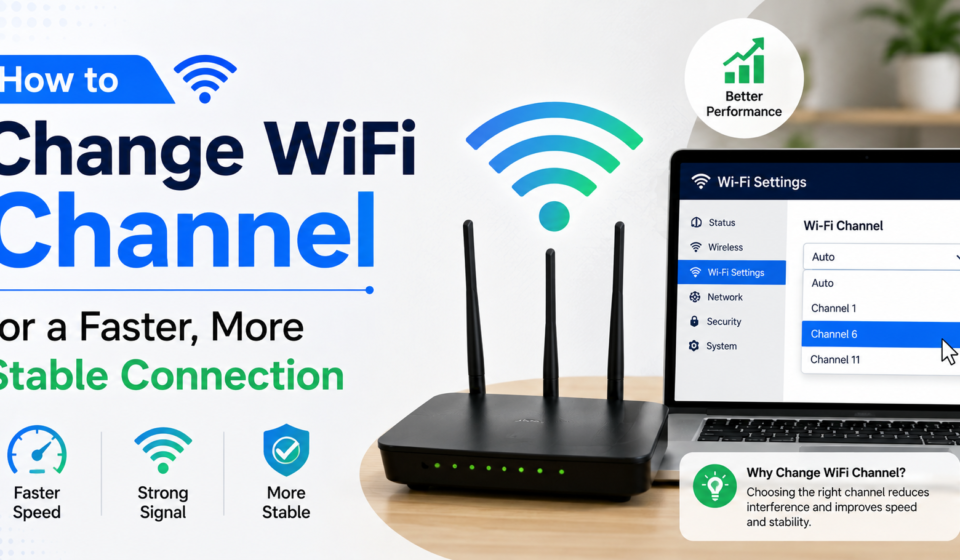

If your internet feels slow or keeps dropping, the problem may not be your provider. Knowing how to change wifi channel settings on your router can often solve this issue quickly. This guide walks you through what a Wi-Fi channel is and how to switch it correctly.
What Is a WiFi Channel?
A Wi-Fi channel is a specific frequency band that your router uses to send and receive data. Routers operate on either the 2.4 GHz or 5 GHz frequency, and each of these bands is divided into multiple channels. When too many nearby devices use the same channel, congestion occurs and speeds slow down.
Changing the channel allows your router to communicate on a less crowded frequency. This is especially useful in apartments or offices where many networks overlap.
Why You Might Need to Change Your WiFi Channel
Several signs suggest it may be time to change your wifi channel. Recognizing these signs early can save you time troubleshooting other issues.
Signs of Wi-Fi Channel Congestion
- Frequent buffering during streaming
- Slow file downloads despite a strong signal
- Connection drops in crowded areas like apartment buildings
- Inconsistent speeds at different times of day
Because many neighboring routers often default to the same channel, interference becomes common in densely populated areas. As a result, manually selecting a channel can noticeably improve performance.
How to Change WiFi Channel on Your Router
The exact steps vary slightly depending on your router brand. However, the general process remains similar across most devices.
Step 1: Access Your Router Settings
Open a web browser and enter your router’s IP address, commonly 192.168.1.1 or 192.168.0.1. You can usually find this number printed on a label on your router. Enter your username and password to log in.
Step 2: Locate the Wireless Settings
Once logged in, look for a section labeled “Wireless,” “WiFi Settings,” or “Network Settings.” This section contains options for your network name, security type, and channel selection.
Step 3: Select the Channel Option
Find the setting labeled “Channel” or “Wireless Channel.” In many routers, this defaults to “Auto.” Selecting a manual channel gives you more control over interference.
Step 4: Choose a Less Congested Channel
For 2.4 GHz networks, channels 1, 6, and 11 are generally recommended because they do not overlap with each other. For 5 GHz networks, more non-overlapping channels are available, so congestion is usually less of an issue.
Step 5: Save and Restart Your Router
After selecting a new channel, save your changes. Most routers require a restart to apply the update. Wait a few minutes, then reconnect your devices to confirm the change was successful.
How to Find the Best WiFi Channel
Choosing a channel randomly is not ideal. Instead, use a Wi-Fi analyzer tool to scan nearby networks and their channel usage.
Using a WiFi Analyzer App
Many free apps for smartphones and laptops display which channels are most congested in your area. These tools show signal strength for each nearby network, making it easier to pick a channel with less overlap. This step ensures your channel change actually improves performance instead of guessing blindly.
2.4 GHz vs. 5 GHz Channels
Understanding the difference between these two bands helps you make a better decision when changing your Wi-Fi channel.
2.4 GHz Channels
This band has a longer range but fewer non-overlapping channels, typically limited to 1, 6, and 11. It is more prone to interference from household devices such as microwaves and cordless phones.
5 GHz Channels
This band offers more available channels and faster speeds, though the range is generally shorter. Because more non-overlapping channels exist, interference is often less common on 5 GHz networks.
Benefits of Changing Your WiFi Channel
Switching to a less congested channel can lead to noticeable improvements.
- Reduced interference from nearby networks
- More stable connection for streaming and gaming
- Faster overall speeds during peak hours
- Fewer dropped connections in crowded areas
Overall, this simple adjustment can significantly enhance your daily internet experience without requiring new equipment.
Important Considerations Before Changing Your WiFi Channel
Before making changes, keep a few points in mind to avoid unnecessary issues.
- Some routers automatically select the best channel, so manual changes may not always be needed.
- Changing channels will briefly disconnect all devices during the router restart.
- If problems persist after changing the channel, other factors like router placement or hardware age may be involved.
Because every environment is different, testing multiple channels may be necessary to find the best result.
Frequently Asked Questions
How do I know which Wi-Fi channel to choose?
Use a wifi analyzer tool to check which channels are least congested in your area, then select one accordingly.
Does changing the Wi-Fi channel improve internet speed?
It can improve speed by reducing interference, though your actual internet speed still depends on your service plan.
How often should I change my Wi-Fi channel?
There is no fixed schedule. Change it whenever you notice slower speeds or increased interference from nearby networks.
Can I change the Wi-Fi channel from my phone?
Yes, if your router has a mobile app, you can typically access wireless settings and change the channel from there.
What is the best Wi-Fi channel for a crowded apartment?
For 2.4 GHz, channels 1, 6, or 11 are usually best. For 5 GHz, use a wifi analyzer to find the least congested option.
Will changing the wifi channel disconnect my devices?
Yes, briefly. Most devices reconnect automatically once the router restarts and applies the new setting.
Is it better to use 2.4 GHz or 5 GHz to avoid interference?
5 GHz generally has more non-overlapping channels, making it a good option in areas with heavy 2.4 GHz congestion.
Conclusion
Learning how to change Wi-Fi channel settings is a practical way to reduce interference and improve your network’s performance. By accessing your router settings, selecting a less congested channel, and testing with a wifi analyzer, you can achieve a more stable and faster connection. This small adjustment often makes a meaningful difference, especially in areas with multiple overlapping networks.




[…] training is the process of teaching a dog specific behaviors, commands, and manners. It helps dogs understand what their owners expect from […]
[…] researchers from the Allen Institute for AI. The product is often referred to simply as “Vy,” while “Vercept” is the name of the company behind […]
[…] the two elements, “beit” and “bart,” “beit” and “bart” most naturally reads as […]